Quickstart: from sign-up to your first backtest
Create your account, start the free trial, open a ready-made template, run your first backtest, read the report and watch it back.
1. Create your account
- Open app.algotradinghub.io and choose Create an account.
- Confirm your email with the link we send. The link works for 24 hours. If it does not arrive, Resend confirmation email sends a new one; you can ask again after 45 seconds.
- Sign in.
- Start the 7-day free trial of the base plan from Settings → Billing & usage: choose the base plan alone, yearly or monthly billing, and go to checkout. Stripe asks for a card and charges nothing for 7 days; then the base plan costs €29.90 a year (€2.49 a month) or €2.99 a month, unless you cancel before. Adding an add-on at checkout skips the trial.
There is no free plan: an account without the trial or a plan can sign in and read its work, but runs nothing (without a plan). The trial is the whole base plan:
- bar-by-bar and tick-by-tick backtests over the full history, within 15 minutes of backtest time a day;
- 5,000 test-years for sweeps;
- 1 live strategy on 1 broker account;
- your own AI app, connected (Connect your AI).
More live strategies, backtest time and test-years come with the add-ons (Plans and usage).
2. Open a template
Video tutorial · A3 · on YouTubeStart from a templateYour account already holds the 19 templates: ready-made strategies, copied into your account as your own strategies. In Strategies, show Templates and open one. A copy carries the Template badge.
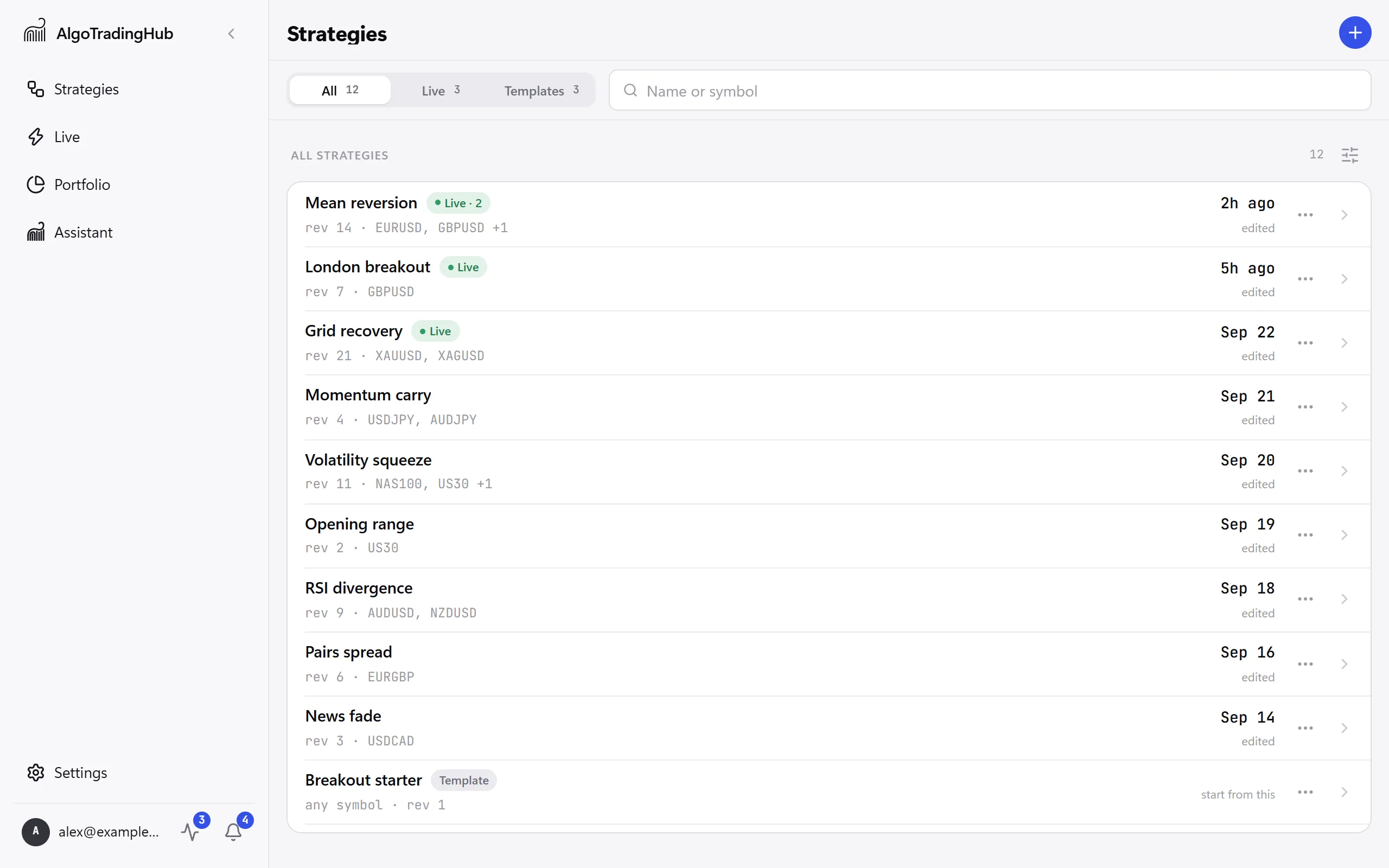
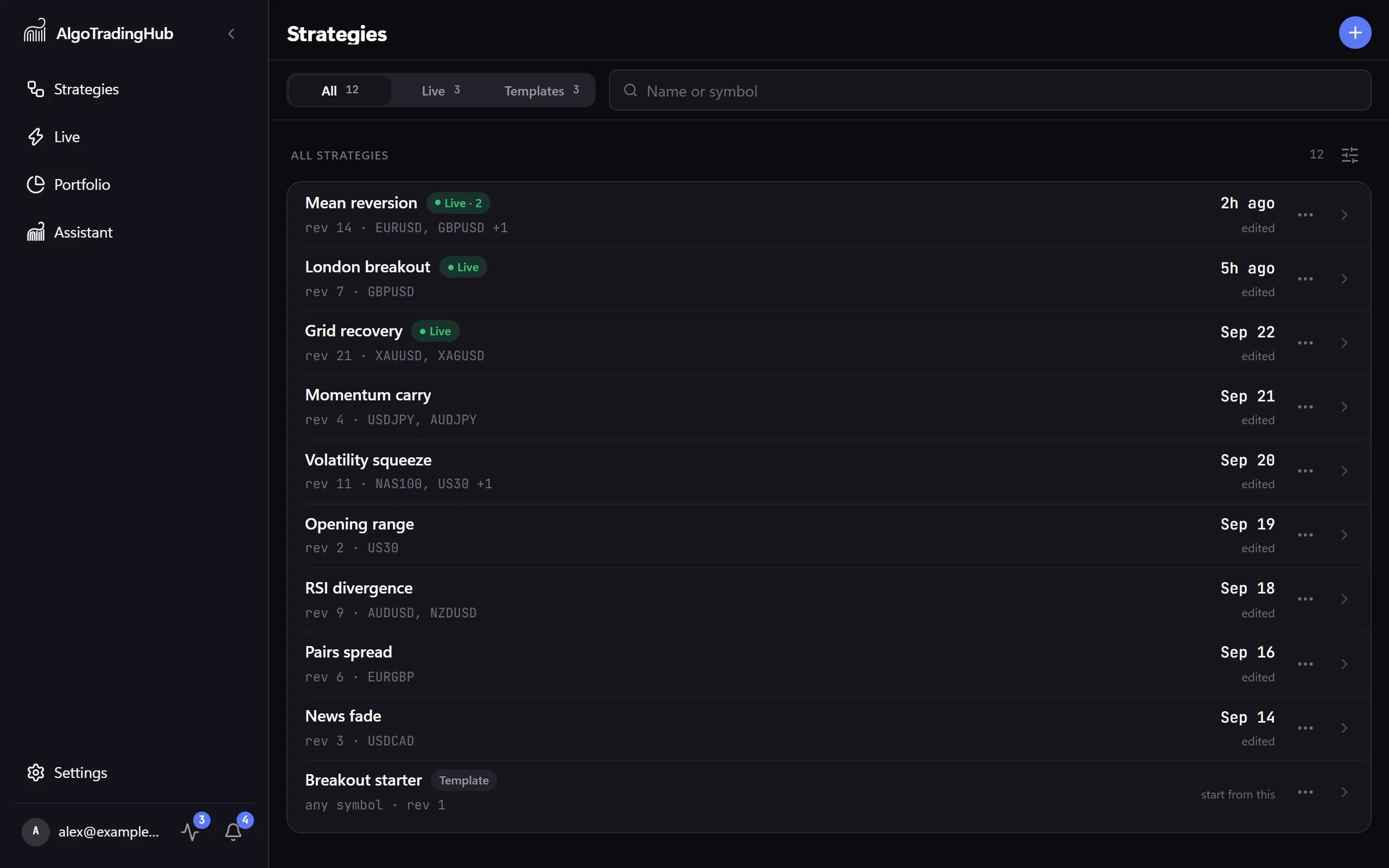
A template is a starting point to change, not a recommendation to trade.
3. Run a backtest
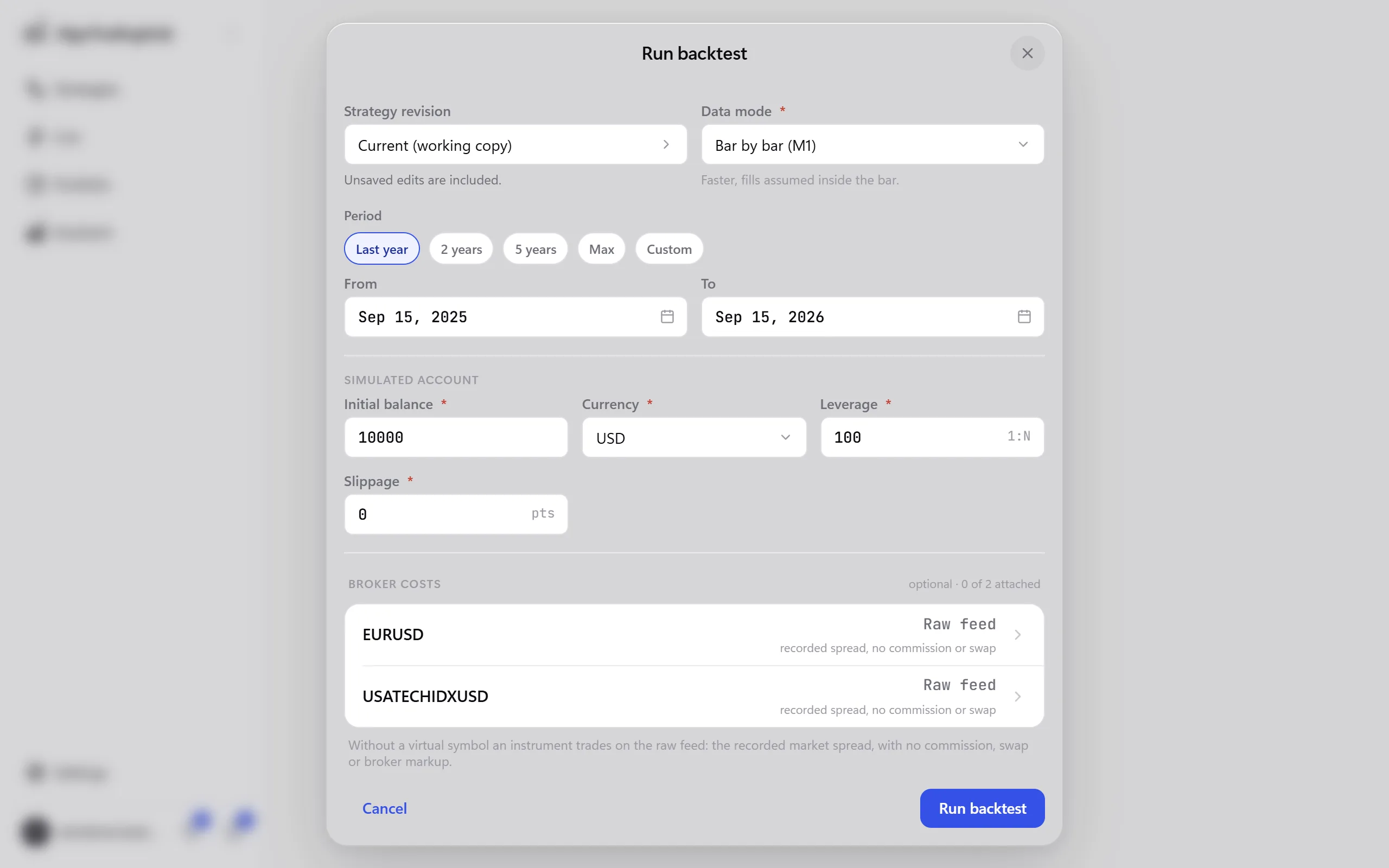
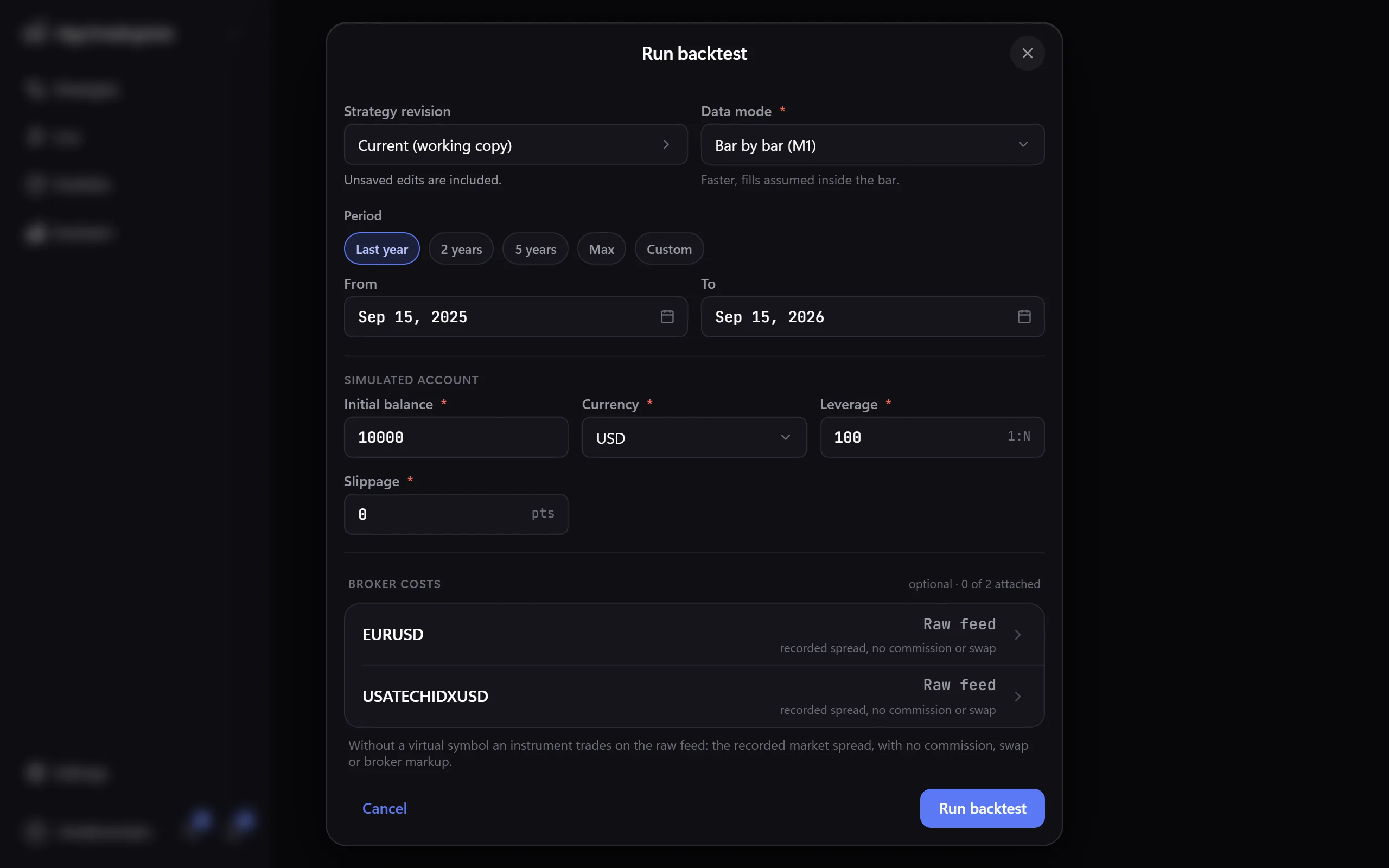
- In the strategy, open Backtests and choose Run backtest.
- Choose the dates. The Data mode is bar by bar unless you pick tick by tick.
- Tick Record a replay if you want to watch the run back afterwards. It must be ticked before the run starts: a run recorded without it cannot be watched back (you can rerun it with recording).
- Choose Run backtest. The run continues on our servers if you close the page.
4. Read the result
When the run finishes, open its report. It shows the equity curve, the summary figures and every closed trade, each with the reason it closed. The run keeps the revision of the strategy it ran, so the report always matches the rules that made it.
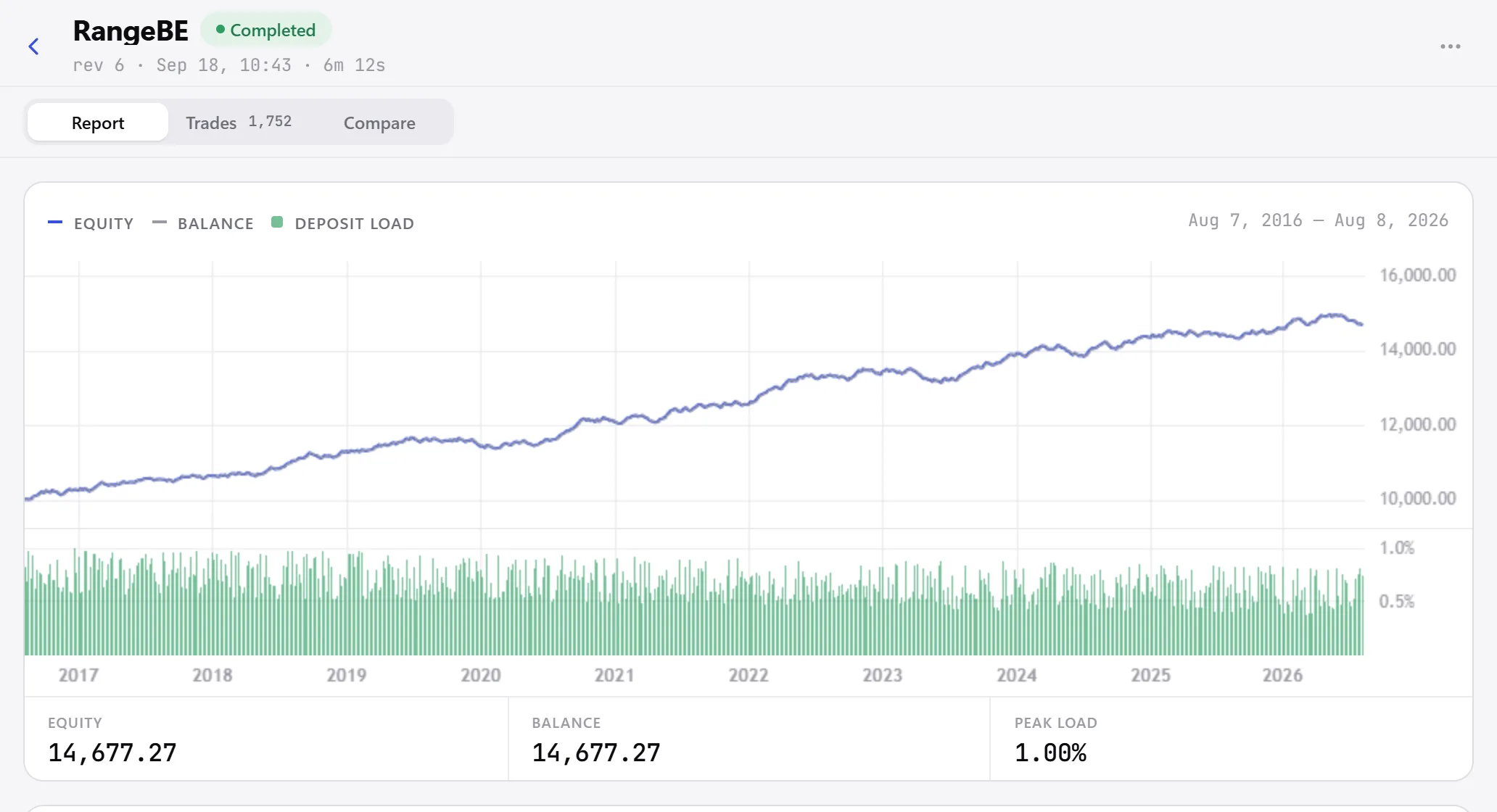
A backtest shows how a set of rules behaved on past data. It does not predict future results.
5. Watch it back
If you ticked Record a replay, Open the replay plays the run back bar by bar: the chart, the account, the conditions your strategy checked and its log, moment by moment. Use it to see why the strategy traded where it did, or why it did not.
How it worksReplayWhat a replay records, and how long it is keptNext steps
- Change one value in the strategy and rerun the backtest: Rerun repeats a run's settings.
- Put two finished runs side by side with Compare (Running a backtest).
- Learn the words used across the app: Core concepts.
- Connect a broker account, demo or live, and deploy the strategy.
Questions?support@algotradinghub.io