Connecting a cTrader account
Connect a cTrader account to run your no-code strategies on it automatically: sign in at cTrader, pick, verify, re-link or remove the account.
Before you start
- You need a cTrader ID that reaches at least one demo or live account. Any broker that offers cTrader accounts can be used. Spread-betting accounts are not supported.
- You can connect as many broker accounts as your plan has live strategies: 1 on the base plan (the trial too), up to 40 with the live strategies add-on. Without a plan you cannot connect one. The limit counts the accounts connected now; removing one frees its place.
Once an account is connected, the strategies you build without code run on it from our servers, around the clock: no platform to keep open on your computer and no VPS.
How it worksLive executionWhy cTrader, and how the live engine is built for more brokersConnect
- Open Live and choose Connect cTrader.
- cTrader's own sign-in page opens. Sign in with your cTrader ID and approve AlgoTradingHub's access. You type your password on cTrader's page only: we never see it. Finish in the same browser you started from, signed in to the same AlgoTradingHub account.
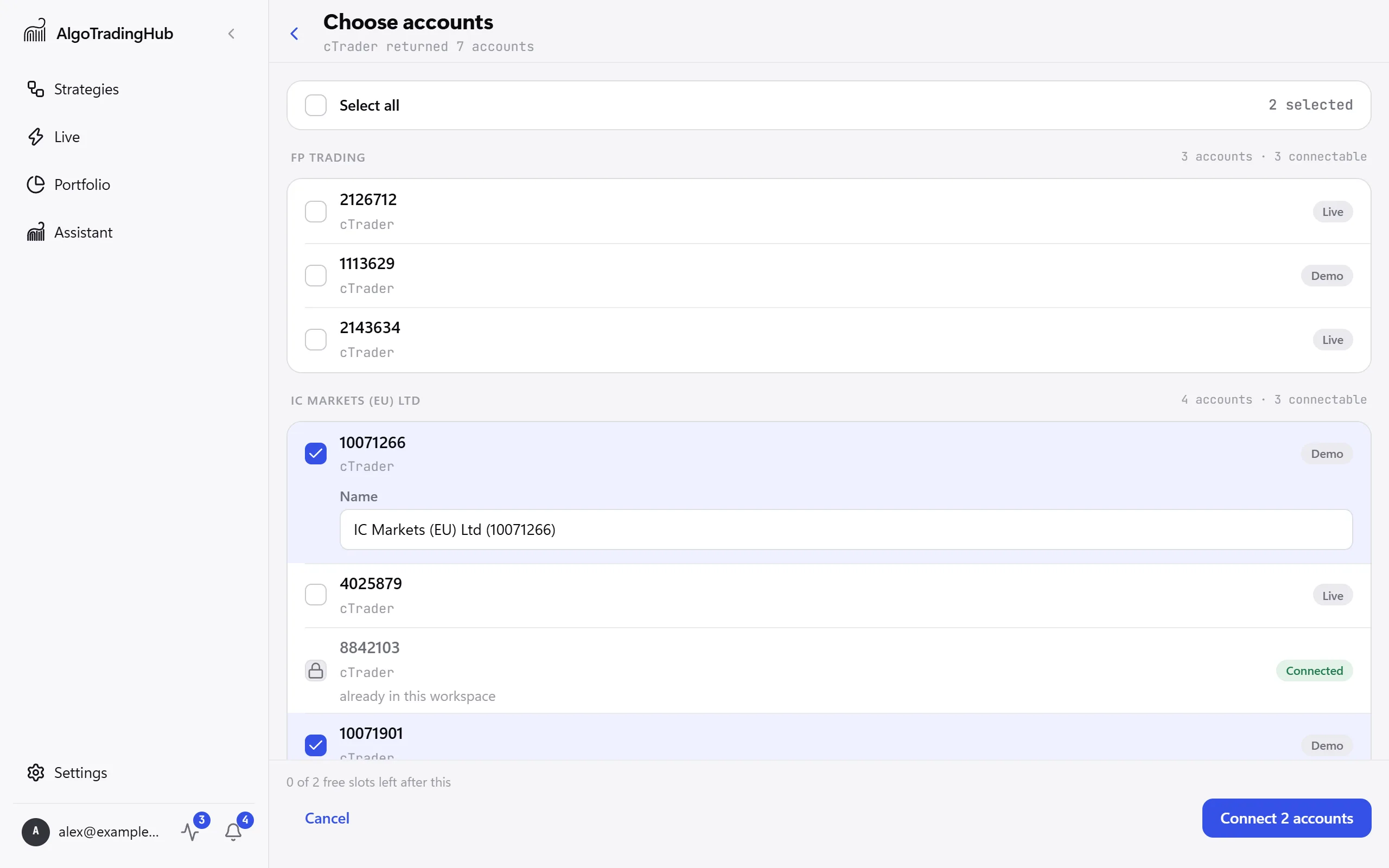
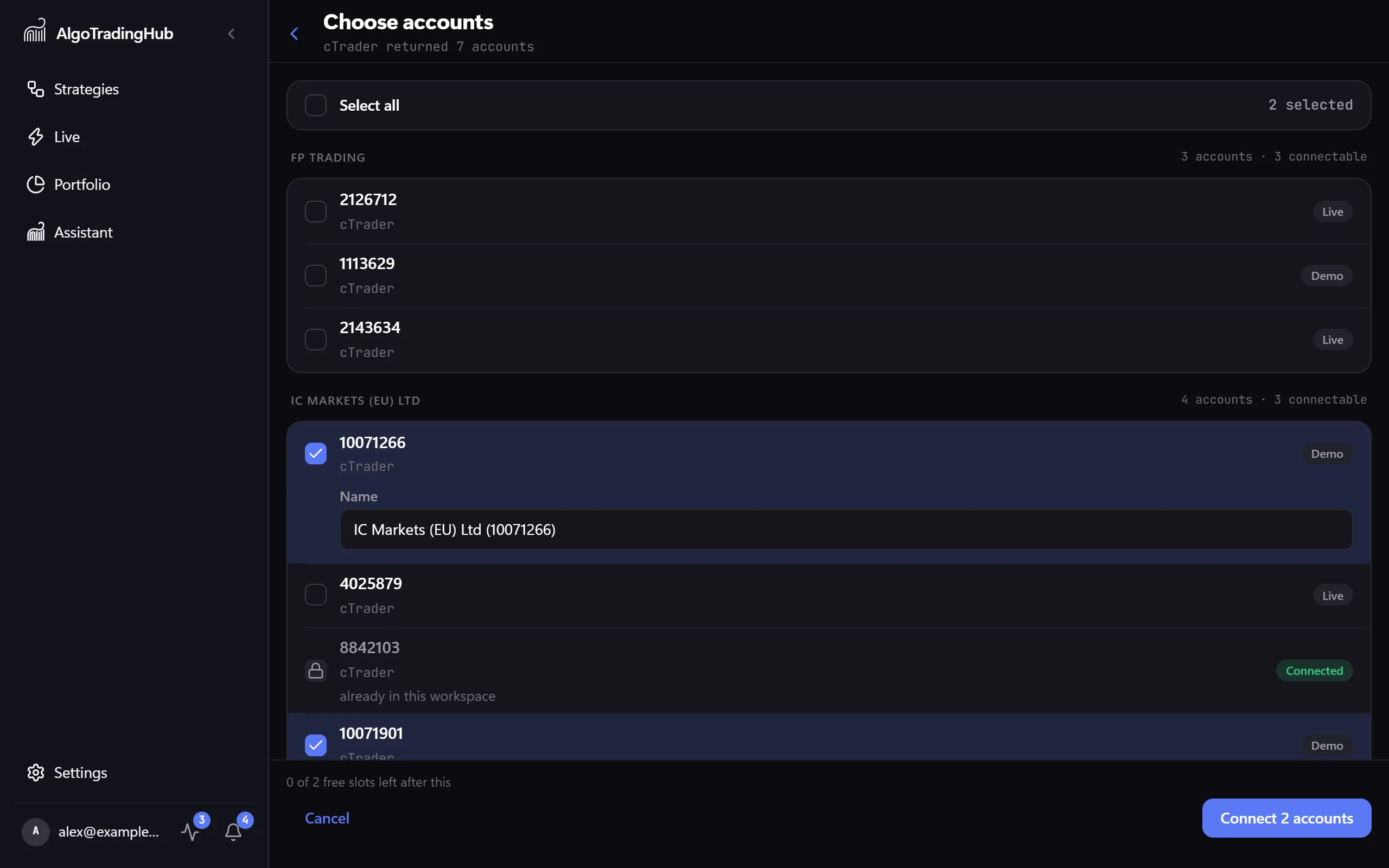
- Back in the app, Choose accounts lists every account your cTrader ID reaches, demo and live. A live account trades real money.
- Pick the accounts to connect (up to 20 at a time), give each a name, and confirm. Finish within 10 minutes of signing in, or start again.
If a picked account cannot be connected, it stays on the list with the reason; the others are connected anyway. A broker account can be connected to one AlgoTradingHub user only: an account another user has already connected is refused.
Verify
Each new account is verified before it can be used: AlgoTradingHub connects to it and reads its account type (hedged or netting), its currency and its leverage. This runs by itself right after you connect; on the account page, Verify now runs it again.
- Nothing can be deployed on an account until it is verified.
- The account type decides which strategies can run on it: a strategy deploys only to an account with the same Hedged or Netting model. Deploying to a netting account is turned off for now.
- The account currency must be one of USD, EUR, GBP, JPY, CHF, CAD, AUD, and NZD; any other leaves the account unverified.
Health and re-link
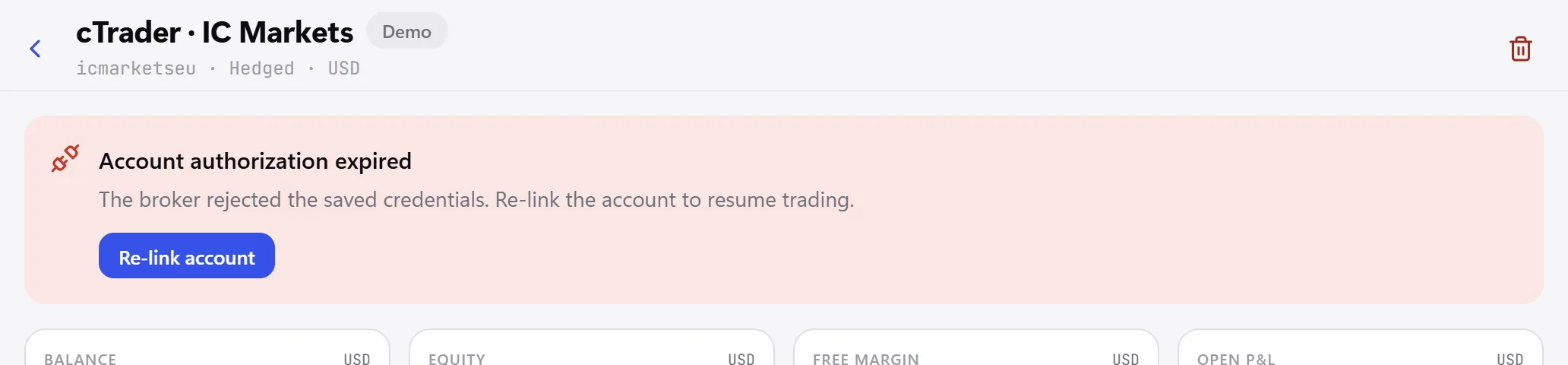
AlgoTradingHub keeps your cTrader access fresh by itself. If cTrader refuses it — for example after you withdraw the access in your cTrader ID — the account shows Re-link needed, and you are notified, whether deployments run on it or not. Until you re-link, its deployments receive no prices and make no decisions; positions and orders already at your broker stay there, with their stop loss and take profit.
If cTrader refuses the account itself rather than your access — a prop firm disabled it after a failed challenge, or the broker closed it — that account alone shows Re-link needed, you are notified, and AlgoTradingHub stops checking it. Verify now on the account page checks it again.
To fix it, choose Re-link account on the account page, approve access again on cTrader's page, and pick the same account. The account keeps its place, its deployments and their history; only the stored credentials are replaced, and the account is verified again.
Removing an account
On the account page, remove the account with Remove.
- Stop its deployments first: an account with a deployment that is running, paused or starting cannot be removed.
- Removing deletes the account's stopped deployments and their results, and deletes the cTrader credentials we stored for it; before they are deleted, they are made useless at cTrader.
- Open positions at your broker stay open. From then on they are yours to manage.
Removing the account in AlgoTradingHub does not withdraw the authorisation you gave at cTrader. To withdraw it there too, open your cTrader ID and remove AlgoTradingHub under "Authorised Open API applications".
How it worksBrokers and accountsWhat we store from your broker, how it is protected, and how to withdraw accessWhich instruments your broker carries
Every instrument in the catalog can be backtested, whoever your broker is. Trading it live depends on your broker:
- For the brokers in the table below, every instrument has been reviewed: it is mapped to that broker's own symbol, or marked as not carried. A deploy that needs an instrument the broker does not carry is refused.
- At any other cTrader broker, currency pairs and pair-quoted instruments such as gold, silver and bitcoin are matched to the broker's symbols automatically when the deployment starts; if the broker has no match, the start fails. Indices and commodities need a reviewed mapping, so a strategy that trades one of them is refused before it deploys there. IC Markets (Global) is the exception: its index and commodity names are carried over from IC Markets (EU) and still being checked.
| Class | Catalog (backtest) | FP Markets | FTMO | IC Markets (EU) | Spotware |
|---|---|---|---|---|---|
| Forex | 37 | 37 | 36 | 35 | 34 |
| Metals | 5 | 4 | 4 | 4 | 4 |
| Commodities | 10 | 5 | 7 | 3 | 3 |
| Indices | 17 | 12 | 14 | 16 | 12 |
| Crypto | 1 | 1 | 1 | 1 | 1 |
| Total | 70 | 59 | 62 | 59 | 54 |
Questions?support@algotradinghub.io